
Your login page still says WordPress. That is embarrassing.
Every site I build has a link that clients never click. I know. So does the client, in a vague way. And every single one of those pages is /wp-login.php, which means every one of my sites has a grey WordPress login box sitting on the front footpath, waiting to be found. And honestly? It’s a bit embarrassing, on a client site that took weeks to design properly — the front door looks like it belongs on a 2009 forum.
The thing about that default login page nobody talks about: it’s the first URL a scanner hits when it finds your site, and the last thing a designer looks at when they’re building a client site. So it stays default. Everyone’s does. It’s a quiet little “yes, this runs WordPress” flag hanging on a site that otherwise looks like it cost more than it should.
So I gave it a designer
The Login Stylizer in Reboot Addons is a visual designer for wp-login.php. Not a CSS file you beg a theme to inherit. A visual designer — you open it, you see a live preview next to the controls, you move things, they change. Logo, background (colour, gradient, image, or video), the form card, the fields, the button, the footer and social links, the animations.
I actually counted the panel one evening, mostly because 219 controls is a number I wanted on the record. Eleven sections. The Fields & Labels section alone has 54 of them.
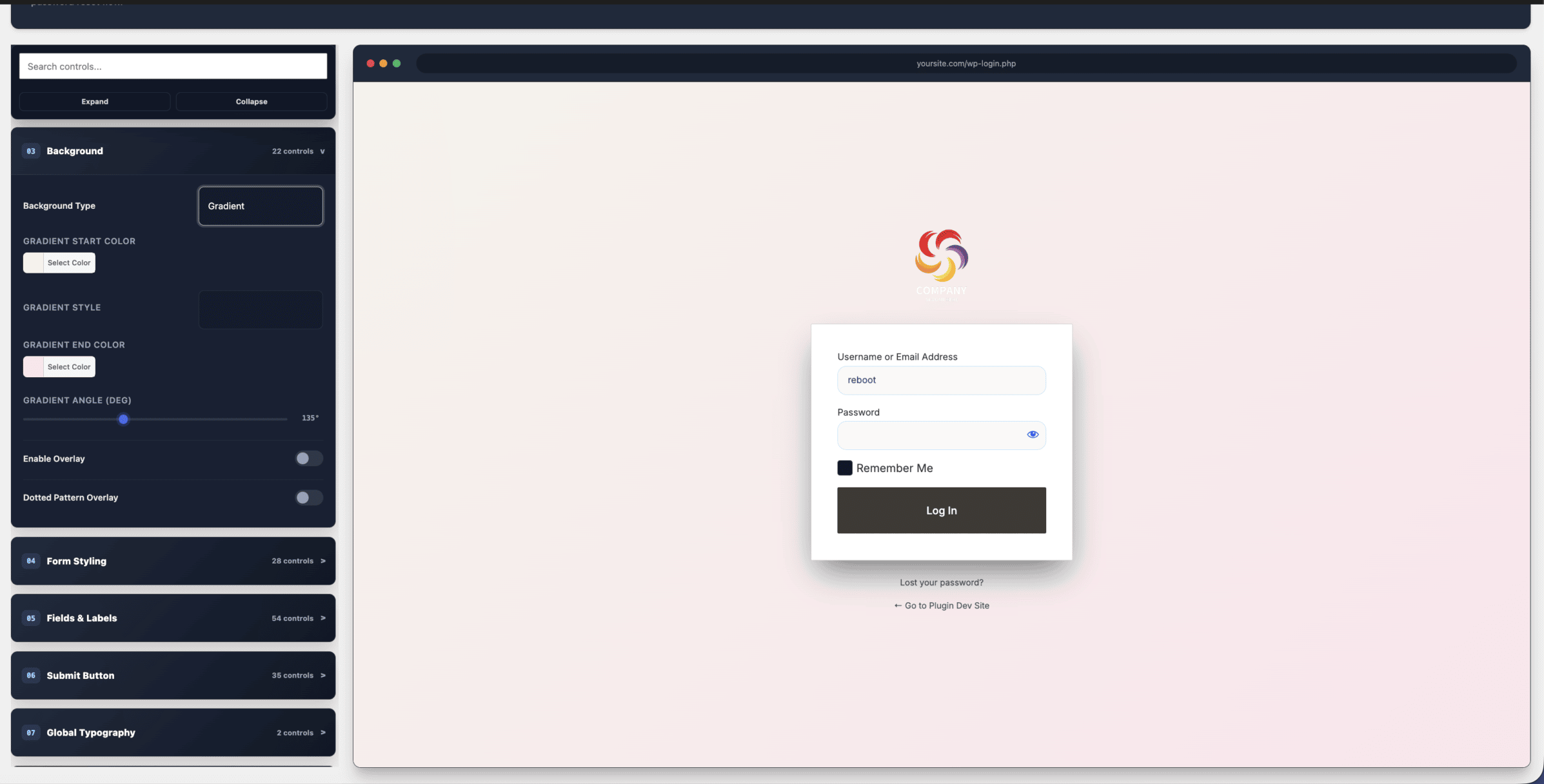
The default WordPress login is functional, sure. It’s just that functional is doing a lot of heavy lifting for a front door. You can get to this — the dark, logo’d, properly designed version of your login page with your name on it — in the time it takes to make a second coffee.
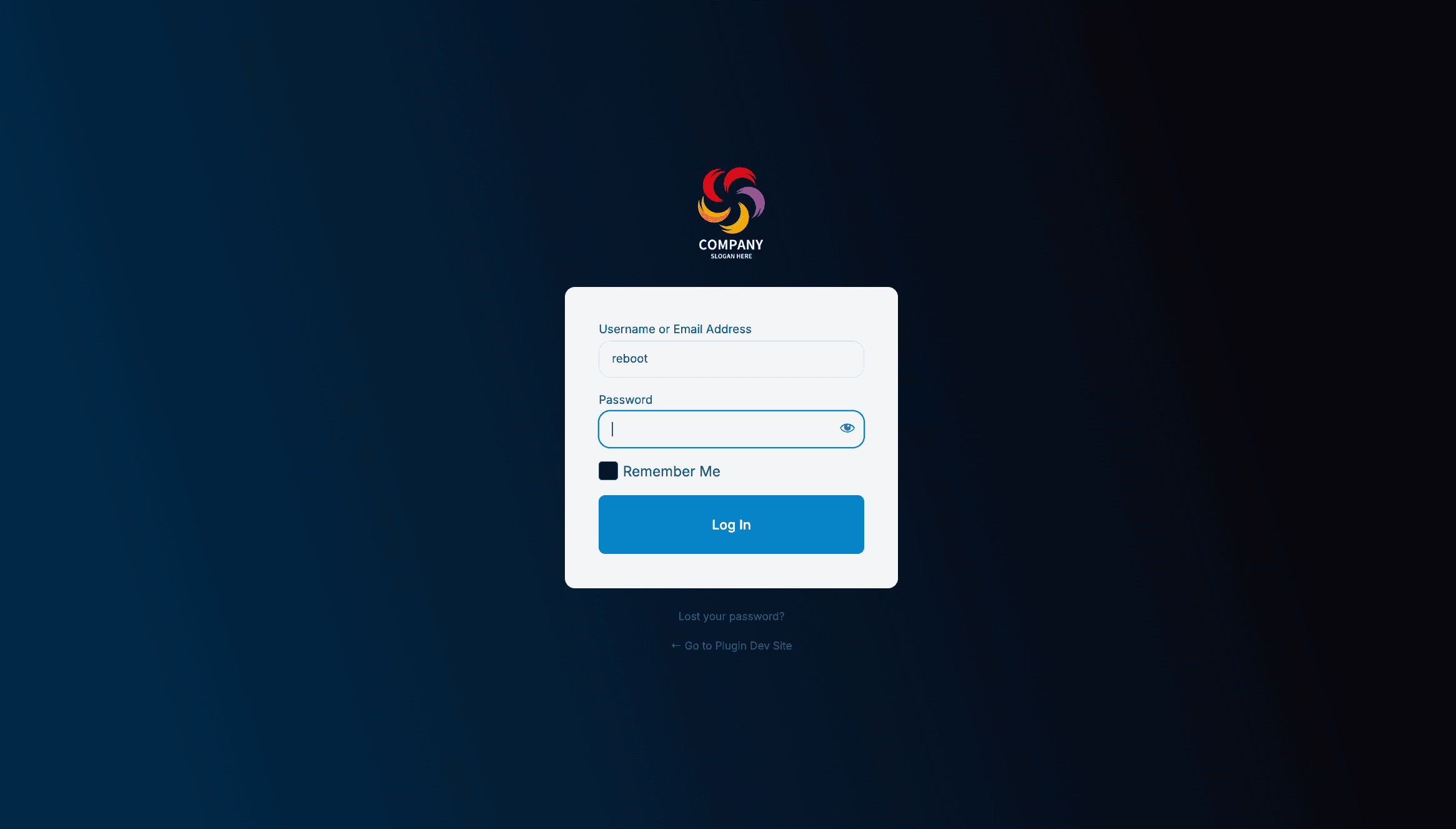
Five themes, free, and none of them look like everyone else’s
You can start from scratch and use all 219 controls — that’s fine, they’re there. Or pick one of the five free starter themes that ship with it. They’re not the purple-gradient-login-page cliché you’ve probably seen on every other “branded login” plugin. They actually look designed. Because they were — not generated by a settings panel somebody gave up on.
All five are in the free version. You install it, you pick a theme, you tweak the logo and the colour, you’re done. That’s the whole job, and it doesn’t need Elementor Pro, and it doesn’t need a developer day. And if you want more themes, pro expands that set. But the free core isn’t a demo. It’s the real thing.
The part I actually care about: one design, all your sites
Run client sites and you already know the problem. You’ve got seven WordPresses on seven domains, and you want the same brand on every single one of their login pages. The “proper” way to do that is to re-do the login styling on each one. Seven times. And then when the brand changes, seven more times.
So here’s the move: design it once, in the stylizer, the way you actually want it to look. Save the design. Export it. Import it on the other six. Your five client sites now have matching branded logins. And when you rebrand next year, you change one design and push it to all of them.
That export/import bar sits right there at the top of the panel — save design, export, import. You see it in the shot.

It also plugs into reCAPTCHA v2 and v3 if you want it on the login, handles the redirect after sign-in, and here is one that you should actually check — it doesn’t break the native password reset flow. Because the worst “branded login page plugin” I’ve ever seen is the one that also broke a client’s “I forgot my password” link. That one’s preserved and working. That matters more than any control in this plugin, to be honest.
Frequently asked stuff
Do I need Elementor Pro for this?
No. The plugin works with the free Elementor. The login stylizer itself doesn’t require Elementor at all — that’s a separate feature of the pack. You install free, it works on whatever theme you’re on.
Does it break my password reset or anything else that’s already working?
No. The whole plugin is built to keep the native WordPress auth flow fully functional — reset, redirect, captcha, the lot. The styling layer sits on top, doesn’t replace it.
Can I use the same login design on my other sites?
Yes, that’s the point of the export/import toolbar. Design it once, export, import on the next site. When you rebrand, you do it once and push to all of them. If you run a handful of client sites, this alone is worth the install. Free, by the way. The core designer, the five free themes, export, import — all of that’s in the free version. Pro expands the theme count and adds more controls.
Install the free thing. It’s already in the WordPress repo
It’s a free download, in the WordPress plugin directory under Reboot Addons by Reboot Websites. Install it, open the login stylizer, and in about five minutes your /wp-login.php is branded, dark, and looks like you spent a day on it. You spent a coffee. And that front door finally looks like the rest of the site it belongs to.

One more thing. The design exports as a file, so you set it up once and drop the same login screen onto every other site you look after.
I Let an AI Run My Site Updates. It Failed at One Thing.
I Let an AI Run My Site Updates. It Failed at One Thing.
It’s a Friday. I’m mid-cup of coffee. Instead of opening the dashboard and clicking through six “Update now” buttons in the exact order my gut says won’t break anything, I asked the AI I work with to do it for me — including the Elementor theme, which is the one that can ruin your afternoon.

Short version: it updated everything, one plugin failed, and the whole thing took about four minutes including the arguing. Here’s the actual run, failures and all.
What I actually asked for
Four plugins and the Hello Elementor theme. That was the queue. Elementor was on 4.3.2, Media Cleaner on 7.2.6, Google for WooCommerce a version behind, Hello Elementor still on 3.4.9.
The bit that’s easy to miss: the theme was flagged critical in our own site health check. An active theme sitting behind a patch isn’t theoretical risk, it’s just a question of timing. So that one was non-negotiable. Every other “do it” decision on that list was mine. The AI executed. That distinction matters, and I’ll come back to it.
The updates that went in
Elementor 4.3.2 to 4.3.3, no drama. Media Cleaner 7.2.6 to 7.2.9, still active, no drama. Google for WooCommerce 3.9.4 to 3.9.5 — it was inactive to begin with, so honestly the lowest-stakes update you can get. Hello Elementor 3.4.9 to 3.5.1, active before and after, front end rendered the same.
The critical flag in site health cleared. Zero criticals after the run. That’s not “it didn’t break anything, probably” — that’s the actual health report. Twenty two checks green.

The one that failed (and why it’s fine)
Media Cleaner Pro. The free version updated to 7.2.9 without issue. The Pro version tried to do the same, and WordPress told it there was no update available.
Here’s the thing people miss: that’s not a failure. Media Cleaner Pro is a licensed add-on from Meow Apps, and those license-gated plugins pull their updates through a “My Updates” channel instead of the normal update feed. Our WordPress install had never seen that packet, because the plugin’s own update system is the one that talks to them.
So “the AI failed to update Media Cleaner Pro” is a bit like complaining your colleague failed to withdraw cash from a safe that only his manager has the combination to. The right move is to open the Pro panel, let it check against its own service, and click update there. Thirty seconds.
Why I’d do it again
Not because it’s new. Because the boring part of updating a production site is exactly the part where you make a mistake — wrong order, missed a plugin, forgot to check what actually broke afterwards. The update itself was never the risky bit. The verification was.
This run checked: were both plugins still active? Did the theme front end still render? Did site health come back clean? Were there zero pending updates left? All yes. I’d have done the same checks myself, manually, with my eyes more closed than open, because it’s a Friday.
The failure above is the argument for doing it this way, not against. The system stopped at the first thing it couldn’t do, told me exactly what the WordPress error said verbatim, and did not go on to touch the rest of the queue without being told to. That’s not a magic fix. That’s a sensible process, executed faster than my usual Friday pace.
The part I’d never automate
The decisions. Which plugin gets the update first, which inactive plugin stays off because nobody remembers what it was for, whether we’re ready for a PHP version jump on the host. Those are mine. They’ve always been mine. The AI runs the queue and reports what happened. I decide what the queue is.
Frequently asked stuff
Did the AI break the site?
No. Every plugin stayed in the active state it was in before the run. The active theme updated and the front end rendered the same after. Site health went from one critical to zero. Nothing new was installed.
What if an update had broken a layout?
Then that’s the same outcome you get clicking the button yourself. Elementor updates are where most of the “my site looked fine and then it didn’t” stories on the internet come from, and the fix is the same either way — check what changed in the version notes and roll back if it’s a genuine layout regression. An automated run doesn’t make that worse, it just doesn’t get to feel guilty about it.
What’s the Media Cleaner Pro update situation?
Open the Media Cleaner Pro settings in the dashboard. It has its own “Check for updates” through the Meow Apps licensed update channel. Click that, and it updates itself to 7.2 like the free version did. If it tells you there’s no update, you’re on the latest licensed build and can stop thinking about it.
Is this a good move for a client site?
If it’s a client site with an active Elementor theme sitting on a patch behind, then yes, the update matters more than the method. The only difference between this run and doing it by hand was speed and not forgetting to verify afterwards. Same risk profile, better process.
So. Site updated. One failure that was a license channel, not a bug. About four minutes of my Friday that I’d otherwise have spent feeling mildly anxious about elementor. Worth it.
One more thing. The thing that made that run safe was having a repeatable cleanup checklist to run after every update, not after every problem.
Elementor 3.17 Update Broke My Forms — Here’s the Fix
Everything looks fine for about twelve seconds. Then the contact forms stop submitting. No error message. No console warning. Just… nothing.
The Real-World Scenario
Happened last Tuesday on a client’s WooCommerce site in Sandton. They’d updated Elementor overnight — standard maintenance window, right? By 9 AM their lead forms were dead. Zero submissions. The spinner just sat there spinning like it was waiting for a bus that wasn’t coming.
What Actually Broke
Elementor 3.17 changed how `action` attributes work on forms. They moved from inline `action=”/wp-json/elementor/forms/submit”` to a dynamic AJAX handler that requires the `elementor_form_submitted` nonce. If your page cache serves a stale nonce? Form dies silently.
Three things I check in order:
1. Clear all caches — WP Rocket, LiteSpeed, Cloudflare, server-level (HostAfrica/afrihost/nginx). The nonce in the cached HTML is from before the update.
2. Regenerate Elementor data — Elementor > Tools > Regenerate Files & Data. This rebuilds the form endpoints with fresh nonces.
3. Check for `form_data` in `localStorage` — 3.17 caches form state locally. If the user had the page open during update, their browser sends stale data. Hard refresh (Cmd+Shift+R) fixes it.
The Johannesburg Angle
We see this constantly on sites hosted with Afrihost, Web Africa, and Hostigator. Why? Their server-level caching (nginx fastcgi, LiteSpeed LSCache) serves stale HTML for hours after an Elementor update unless you purge manually. Most clients don’t know their host caches at the server level — they think “I cleared WP Rocket, I’m good.”
Had a client on Web Africa Business Hosting last month. Cleared WP Rocket, cleared Cloudflare. Forms still broken. Turns out Web Africa’s nginx cache has a 4-hour TTL by default. Had to log into their cPanel > LiteSpeed Cache > Purge All. Forms worked instantly.
Pro Tip from the Trenches
Disable Elementor’s “Improved Asset Loading” if you’re using ANY caching plugin. They fight. Elementor tries to optimize CSS/JS delivery while WP Rocket/LiteSpeed does the same thing differently. Result: broken nonces, missing CSS, forms that submit to the wrong endpoint.
We’ve seen this cause 3+ second delays on Johannesburg-hosted sites specifically — the asset loading rewrite adds overhead that server-level caching then serves to everyone.
Final Thoughts
Elementor 3.17 isn’t “broken” — it changed the contract. Your cache is serving the old contract. Purge everything, regenerate Elementor data, hard refresh. Takes 3 minutes. Your leads will thank you.
One more thing. The stale-cache half of this has a reusable answer. The nonce half is an Element Caching setting, and I wrote up the real cause properly here.
My WordPress Site Got Hacked (Not My Fault — wp2shell Did It)
Okay, so I was checking email on Monday morning and a buddy of mine sends me this message: “Your site is running mining scripts.”
I literally laughed. Like — my site?
Turns out he wasn’t joking.
Someone had gotten into the server my WordPress sites run on and dropped crypto-miners everywhere. Not through a plugin. Not because I used some dodgy free theme I pulled off Reddit. Through a hole in WordPress core that literally anyone with an internet connection could abuse.
Called it wp2shell. Which is pretty funny when you think about it — WP directly to Shell.
Wait, what even IS wp2shell?
Alright so here’s the thing. WordPress has this endpoint called `/wp-json/batch/v1` — it’s been sitting there since like 2020 (shipped in version 5.6). Normally it’s fine. But starting with WordPress 6.9, something shifted and you could actually exploit it.
The chain goes like this:
Step one: There’s a route confusion bug — CVE-2026-63030. What that means is the batch endpoint doesn’t properly validate requests, so an unauthenticated hit gets smuggled through to places it absolutely should not reach.
Think of it like someone walking into your office building without showing ID, and the security guard just… waves them through. Because why not?
Step two: That smuggled request lands on `author__not_in` in WP_Query — which has a SQL injection vulnerability (CVE-2026-60137). From there, the attacker can basically do whatever they want with your database.
Step three — and this is where it gets ugly: They use UNION queries to forge posts. Then they write through the oEmbed cache. Then they create a rogue admin user. Then they drop a webshell plugin. By the time you notice, they’ve got full command execution on your server.
No login required. No password guessing. Just hit their script and watch it roll.
If your site is running anything older than WordPress 7.0.2 or WP 6.9.5 — stop reading this page for one second and update now. Seriously. This isn’t theoretical anymore.
Which versions are we talking about?
This matters — because some of you reading this might be safe and some of you are sitting on a live grenade right now.
Affected ranges:
- WordPress 6.9.0 through 6.9.4 → fixed in 6.9.5
- WordPress 7.0.0 through 7.0.1 → fixed in 7.0.2
If you’re anywhere in those ranges, your site is sitting wide open. Not potentially vulnerable — actively exploitable.
(And yeah, even a completely stock install with zero plugins. They found that out the hard way and it sounds pretty scary.)
This isn’t theoretical
I've built probably over 100 WordPress sites at this point. Some are for small local businesses, some are full e-commerce builds like [this furniture store I threw together](https://rebootwebsites.co.za/how-to-build-a-furniture-style-ecommerce-website-in-wordpress-elementor-tutorial/. Almost all of them use Elementor because honestly it just works for 90% of clients.
But here's what wp2shell means: it doesn't matter how good your design is, how many animations you've coded, or whether you spent three months building the perfect [container entrance effect](https://rebootwebsites.co.za/entrance-animations-for-any-widget-or-container-elementor-tutorial/. If core hasn't been patched, none of that matters because they can just nuke the whole thing from orbit.
And WordPress actually had to force auto-updates for affected sites. They don’t do that. Like ever. The risk was genuinely this bad.
So what do I actually DO right now?
This is the part you probably came here for, so let’s just get into it.
1. Update core. Now.
Dashboard → Updates. That’s it. Or if you’ve got WP-CLI: `wp core update –version=7.0.2`
2. Check your users list.
If they got in before the patch, they probably created an admin account and left it there. Go to Users → All Users and compare against accounts you actually know about. Any garbage? Delete it.
3. Scan for unknown plugins.
The exploit chain drops webshell plugins through oEmbed cache writes. So literally any plugin you don’t remember installing is a red flag — not just a red flag, a “call me back in 20 minutes because I found something” kind of moment.
4. Pull your access logs.
Search for hits to the batch endpoint before July 17. If you see activity there, someone already knocked on your door — you just didn’t notice yet.
5. Reset admin passwords.
Even if you’re certain they couldn’t have gotten credentials, just do it. Takes two minutes and buys you sleep at tonight.
I’m a client of yours — are my sites affected?
If you’ve been with me on WordPress hosting or I manage your site? You’re good. I patched everything the second this dropped — probably at 3am because that’s what this job does to you.
If you’re just reading this and wondering about “your” site (the one you built two years ago on cheap shared hosting and kind of forgot about) — go check right now. Seriously. I’m not even going to wait here.
What if I literally can’t update core right now?
You know what? I’ve been there. Client’s site is mid-launch and you’re terrified that updating might break something because you never bothered to test against the new version (we’ve all done it).
In that case — and this is purely emergency mode — block `/wp-json/batch/v1` at your WAF or web server level.
A single Nginx deny rule kills 90% of the attack surface. WordPress doesn’t need the batch endpoint for normal operation, so blocking it shouldn’t break anything. Most sites didn’t even know it was there until this happened.
But again — stop using band-aids and just patch the core already. It literally takes three seconds from the dashboard.
Frequently asked questions
Do I need to update plugins or themes too?
Nope — wp2shell is WordPress core. Zero plugins involved, neither causing it nor required for the exploit. Stock install? Still vulnerable on affected versions.
How do I check my version from the terminal?
If you have WP-CLI: `wp core version`. Don’t? Run `grep “wp_version” wp-includes/version.php` from your site root.
How can I tell if I’ve already been compromised?
Check for unexpected admin accounts, plugins you don’t recognise, or PHP files in your uploads directory that contain `base64_decode`. Wordfence catches the obvious stuff, but honestly it’s worth scanning manually too.
Who found this and when was it disclosed?
July 17 — researchers at Aikido Security found the chain (CVE-2026-63030 + CVE-2026-60137), WordPress released emergency patches same day, and the GitHub advisory went public simultaneously.
Final thoughts
This is one of those vulnerabilities that makes me think “how did this even get through review?” because it combines two separate bugs into a complete remote code execution chain, requires zero authentication to trigger, and affects almost half the websites on the internet.
Honestly? The only reason I’m writing this instead of rebuilding servers right now is because WordPress forced the updates through before most people even knew what was happening. And that’s actually impressive in a “they panicked but did the right thing” kind of way.
If you need help checking your site or keeping it patched? [Drop me a line](https://rebootwebsites.co.za/contact/. I'd rather have coffee and a chat about your website than explain to someone why their site's hosting cat porn after 2am.
One more thing. Most of what gets a site patched quickly is small, repeated, and easy to forget. That is the kind of thing worth turning into a setting you stop thinking about.
Elementor Update Just Broke My Site — Here’s How I Sorted It
You tap ‘Update‘ in Elementor.
Watch the spinner go round and round. Go make a coffee because this always takes longer than it should.
Come back and your whole layout looks like someone deliberately tried to ruin it.
Happened to me last week on a client site — WooCommerce store, proper e-commerce setup you know the kind where every broken button is money sitting on the floor. They’d been running fine since November.
Then Elementor 3.16 patches in overnight and boom: product grid collapses into a single column with prices floating above images like they’re from two different sites.
What actually causes this (and it’s usually only one of three things):
- Cached CSS/JS hasn’t regenerated after the update — most common, easiest fix
- Widget-level custom CSS got reset — Elementor moves or rewrites rules during major version jumps
- Responsive breakpoints overrode themselves — what looked fine on desktop suddenly stacks incorrectly everywhere else
Step 1: Check what Elementor actually changed
Before you panic and start disabling plugins one by one — which is exactly what everyone does when they’re worried but doesn’t help — go here first:
- Elementor > Tools (from your WP admin dashboard)
- Tools tab at the top (not the Fixer tab that’s right next to it)
- Check for any highlighted errors or outdated notices on this screen
This is where you’ll see if Elementor flagged its own problems during the update process — usually it does, honestly. People just skip past them thinking ‘oh I’ll deal with that later’. You shouldn’t.
Step 2: The actual fix — regenerate files and data
This is the step most people miss because that button isn’t where it used to be. Elementor moved it around a few times between versions (still don’t know why they can’t just leave working buttons in one place).

Here’s exactly what you do:
- Elementor > Tools
- Click the blue ‘Regenerate CSS/JS’ button at the top
- Wait for it to finish — usually 20–40 seconds depending on how many pages you’ve got
- Then: clear any caching plugins after this step, not before
If you do your cache plugin first and then regenerate, Elementor generates files that immediately get cached again by your cache layer. Do it the right way: Elementor regenerate first, THEN clear your other caches. Otherwise the whole point is wasted.
Half the time — literally half — that’s all you needed and your layout snaps back into place. Because what looked ‘broken’ was actually just old cached CSS being served instead of the fresh files from the newer version.
Step 3: If containers are stacking weirdly
If Step 2 didn’t fully sort it and your elements are still stacked vertically when they shouldn’t be, this is almost certainly a flex-gap issue.
Elementor switched from margin-based spacing in the old 2.x branch to actual CSS flex-gap in early 3.10+ so older sites that were built with custom margins on inner sections now get both: the old margin rules AND new gap properties fighting each other.
The quick check:
- Edit any broken page in Elementor
- Select the container that looks wrong
- In the left panel, check Layout > Gap.
If it has a value, temporarily set it to 0 and see if things snap back into place.
If they do: you’ve found your problem.

If most of your site has this same problem, fix it globally by going to Site Settings > Layout. Whatever default column gap and direction you set there applies everywhere automatically. Saves you having to open every single section individually.
Besides layouts, what else I’ve seen break:
Custom widgets from add-on packs vanish.
Royal Addons, Crocoblock, Elementor Extended — if they don’t update alongside Elementor itself, those widgets literally stop rendering and instead you see a box that says [Elementor is unable to load this widget]. Fix: update that addon pack too, preferably before touching Elementor.
The editor itself won’t open at all.
You click ‘Edit with Elementor’ and get white screen or a blank tab. Usually PHP memory limit — bump the WP_MEMORY_LIMIT in wp-config.php from 128M to 256M+ and it starts loading again.
Popups show on desktop when they shouldn’t.
Version 3.14 changed how popup conditions get cached apparently. Your settings look correct in the editor but visitors still see popups that should only trigger on mobile. Fix: edit the popup, save as draft first, then republish — forces Elementor to rebuild its condition cache.
The actual prevention:
(And I’ll say this because every person reading is about to ignore it anyway.)
Never update Elementor directly on your live site without testing it somewhere first.
I know. You’ve got a dozen clients, you want the security patch, staging feels like it’ll take forever when you’re already juggling enough — trust me here. The staging environment will always be cheaper than spending 2 hours at lunch fixing what should have just been an update.
Frequently asked stuff:
Can I roll back an Elementor update?
Only if you’ve got a backup from before it updated. No backup means no going back unfortunately.
Which versions are known to cause problems?
In my experience: 3.14, 3.16, and any jump from 2.x straight into 3.x.
Why does my page look fine in edit mode but broken on the front end?
Because the editor loads everything raw ignoring cache. Your visitors are seeing cached files from before the update. Clear your caches and then check again.
If something else broke that I didn’t cover here, drop a comment below — there’s always one more edge case per site it seems like.
One more thing. Most Elementor breakages are leftovers rather than damage. A small set of toggles handles the boring half of keeping a site tidy between updates.